Sunday, September 27, 2009

fast id maker

Fast ID Maker 13_cracked_by_kracker-gg -FIXED Again
Ready Fixed ==================

Old friends don't need activate again

if did not have to activate pose key for activate


scan link :


New Download Link :
http://www.4shared.com/file/12682883...-gg-fixed.html

Friday, September 11, 2009

css

How to add a navigation bar

Today i will show you how to add navigation links just below your blogs header like mine above and it depends what template you are using but it will fit most so always use a test blog before you apply it to your current blog as I'm not responsible if you mess your template up and there is lots of different styles you could have but I'm going to show you how to add a simple set of navigation links so first we need to copy the following CSS code


/* navigation links css code
----------------------------------------------- */
#topnav {
height:40px;
}
#topnav ul {
float:left;
width:100%;
padding:0;
margin:0;
list-style-type:none;
}
#topnav a {
padding:3px 7px 3px 7px;
float:left;
text-decoration:none;
color:#000;
margin:9px 10px 0 0;
}
#topnav a:hover {
color:#666;
}
#topnav li {
display:inline
}


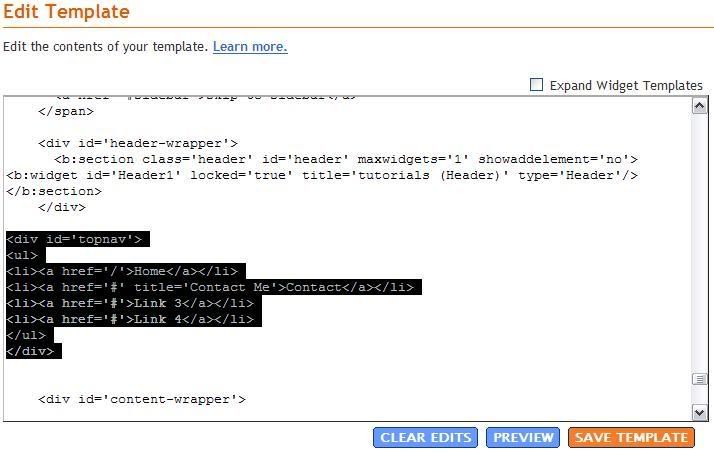
Now paste it like i have done just below the closing skin tag


Now you need to copy the following XHTML code changing the red parts to where ever you are pointing your links to. The first part with the / points to your blogs homepage


and paste it just below the header closing div tag like I've done below


now if you preview your template you should see some links just below your blogs header like mine below


you can change parts of the CSS code to make different navigation styles you should make a test blog and play around with the CSS code to see what you can come up with this is just a simple one

Saturday, August 29, 2009

cana proxy

Canada

192.75.158.100:80 198.165.92.2:80 198.165.92.89:80 206.108.200.30:80 206.108.200.31:80 206.108.200.32:80 206.108.200.33:80 206.108.200.37:80 206.108.200.38:80 206.108.200.44:80 206.108.200.46:80 206.167.24.22:80 209.183.156.10:80 209.58.48.145:80 216.113.193.226:80 24.109.129.244:80 24.80.96.224:80 64.86.208.212:80 66.185.95.132:80 66.185.95.155:80 66.203.160.68:80 68.148.234.199:80 69.197.250.40:80 69.199.80.43:80 128.100.241.68:3124 128.100.241.68:3128 24.101.58.159:80 24.81.151.15:80 198.163.152.230:3127 131.202.240.223:3128 142.104.21.196:3124 129.97.75.240:3128 142.103.2.1:3128 142.103.2.2:3124 142.104.21.194:3128 142.104.21.195:3128 142.104.21.194:3124 198.163.152.229:3127 198.163.152.230:3128 142.103.2.1:3127 129.97.75.240:3124 131.202.240.222:3128 216.187.69.168:3128 64.86.208.212:80 64.86.235.170:80 206.130.99.183:80 24.113.68.125:80 198.163.152.230:3128 142.104.21.195:3128 198.163.152.229:3124 142.104.21.194:3128 142.103.2.1:3128 24.200.60.221:444 198.163.152.230:3127 129.97.75.238:3128 129.97.75.240:3128 198.163.152.229:3128 142.103.2.2:3128 142.103.2.2:3124 129.97.75.238:3124Transparent Transparent Transparent Transparent Transparent Transparent Transparent Transparent Transparent Transparent Transparent Transparent Transparent Transparent Transparent Transparent Transparent Transparent Transparent Transparent Transparent Transparent Transparent Transparent elite proxy
elite proxy
elite proxy
elite proxy
elite proxy
elite proxy
elite proxy
elite proxy
elite proxy
elite proxy
elite proxy
elite proxy
elite proxy
elite proxy
elite proxy
elite proxy
elite proxy
elite proxy
elite proxy
elite proxy
elite proxy
elite proxy
elite proxy
elite proxy
elite proxy
elite proxy
elite proxy
elite proxy
elite proxy
elite proxy
elite proxy
elite proxy
elite proxy
elite proxy
elite proxy
elite prox

usa proxy

12.170.100.225:80 134.173.117.152:8000 148.64.48.26:6588 149.121.12.14:80 149.121.12.4:80 160.79.32.197:8000 168.143.113.13:80 172.130.42.229:3382 172.133.82.169:3382 172.138.19.208:3382 172.152.75.226:3382 172.155.183.208:3382 172.192.133.232:3382 172.193.201.185:3382 172.199.72.184:3382 172.209.48.213:3382 198.108.227.199:8080 198.109.197.254:444 198.248.87.238:8000 199.121.207.253:80 204.131.48.200:8000 205.136.240.131:8080 205.161.63.18:80 205.242.0.93:8000 207.114.181.3:80 207.150.165.110:80 207.30.172.174:8000 208.148.45.115:80 208.177.130.230:8080 208.177.130.231:8080 208.179.120.34:8000 208.187.165.105:8080 208.44.224.121:8000 208.63.116.194:8080 209.167.242.26:8080 209.38.232.98:8000 216.142.65.247:8000 216.204.237.10:8000 216.218.254.94:80 216.236.210.231:8080 216.37.138.189:80 216.77.61.220:8080 24.107.124.59:80 24.144.83.194:18989 24.148.141.228:3382 24.148.197.201:3382 4.242.72.181:3382 4.243.50.217:3382 4.28.173.251:3382 63.174.154.130:2301 63.175.186.70:8080 63.218.109.130:8080 63.241.72.171:8080 63.81.77.26:2301 64.139.64.151:444 64.139.74.130:444 64.139.74.164:444 64.139.82.130:444 64.19.181.60:8000 64.191.54.68:80 64.28.214.103:1080 64.5.152.195:8002 64.5.152.227:8002 65.37.95.81:80 65.37.95.82:80 65.90.93.5:80 66.100.167.182:80 66.114.116.33:80 66.12.34.82:444 66.12.7.222:2904 66.14.234.73:8080 66.14.253.113:8000 66.167.219.98:8080 66.186.20.109:80 66.187.102.89:3128 66.208.192.171:444 66.208.199.2:444 66.208.206.239:444 66.208.207.19:444 66.208.213.38:444 66.208.214.218:444 66.208.225.185:444 66.208.240.70:444 66.208.242.28:444 66.208.250.87:444 66.245.26.162:3382 66.37.243.130:80 66.71.203.137:8080 66.99.19.36:3128 67.36.178.127:3382 67.36.190.161:3382 67.41.124.153:8000 68.105.244.206:8000 68.252.136.126:3382 68.252.165.150:3382 68.73.230.227:3382 69.15.27.235:8000 69.3.112.4:8000 70.88.130.22:444 70.88.132.153:444 12.103.42.51:8000 132.162.209.254:2301 151.164.228.114:8000 205.213.92.101:8080 206.63.7.203:2301 207.182.232.91:8000 216.20.117.82:8000 216.6.148.9:2301 24.13.18.118:2301 24.234.114.66:8000 24.248.80.34:8000 24.59.97.132:8000 63.119.86.176:80 63.200.75.181:8000 63.201.18.219:80 63.201.57.149:80 63.99.211.212:80 64.105.113.91:8080 64.204.105.148:8000 64.204.142.85:8000 64.214.203.80:80 64.219.107.253:80 64.72.130.148:8000 65.103.193.250:8000 65.16.102.130:8000 65.66.34.233:80 65.71.250.82:8000 66.120.64.211:1080 66.134.121.182:8000 66.134.252.243:80 66.160.92.90:8080 66.166.209.21:8000 66.66.222.142:80 66.7.248.214:8000 66.88.2.3:8000 66.92.38.247:8000 67.180.142.41:2301 67.52.64.174:8000 67.65.89.114:8000 68.101.2.169:2301 68.167.57.14:80 68.47.223.92:80 68.90.14.145:80 69.142.157.228:80 69.17.96.248:8000 69.226.29.235:2301 69.43.144.101:8000 69.48.118.236:8000 12.175.160.52:8090 132.79.7.10:80 192.138.52.41:80 204.186.159.229:3536 205.149.6.147:8000 208.147.70.12:8000 216.103.204.7:8000Anonymous Anonymous Anonymous Anonymous Anonymous Anonymous Anonymous Anonymous Anonymous Anonymous Anonymous Anonymous Anonymous Anonymous Anonymous Anonymous Anonymous Anonymous Anonymous Anonymous Anonymous Anonymous Anonymous Anonymous Anonymous Anonymous Anonymous Anonymous Anonymous Anonymous Anonymous Anonymous Anonymous Anonymous Anonymous Anonymous Anonymous Anonymous Anonymous Anonymous Anonymous Anonymous Anonymous Anonymous Anonymous Anonymous Anonymous Anonymous Anonymous Anonymous Anonymous Anonymous Anonymous Anonymous Anonymous Anonymous Anonymous Anonymous Anonymous Anonymous Anonymous Anonymous Anonymous Anonymous Anonymous Anonymous Anonymous Anonymous Anonymous Anonymous Anonymous Anonymous Anonymous Anonymous Anonymous Anonymous Anonymous Anonymous Anonymous Anonymous Anonymous Anonymous Anonymous Anonymous Anonymous Anonymous Anonymous Anonymous Anonymous Anonymous Anonymous Anonymous Anonymous Anonymous Anonymous Anonymous Anonymous Anonymous Anonymous Anonymous Anonymous Anonymous Anonymous Anonymous Anonymous Anonymous Anonymous Anonymous Anonymous Anonymous Anonymous Anonymous Anonymous Anonymous Anonymous Anonymous Anonymous Anonymous Anonymous Anonymous Anonymous Anonymous Anonymous Anonymous Anonymous Anonymous Anonymous Anonymous Anonymous Anonymous Anonymous Anonymous Anonymous Anonymous Anonymous Anonymous Anonymous Anonymous Anonymous Anonymous Anonymous Anonymous Anonymous Anonymous Anonymous Anonymous Anonymous Anonymous Anonymous Anonymous Anonymous Anonymous Anonymous Anonymous Anonymous

Thursday, August 27, 2009

proxy1

Note: If you don't yet know how to run a proxy checker, check this thread (http://www.blackhatworld.com/blackha...y-checker.html) for a quickstart guide to using Charon 6.
-------------------------------------------------------------------

There are several proxy leeching tools around, and in my personal experience (I'd never say I'm not biased, so take everything with that modifier) they're invariably hot garbage. For one thing, you need to know enough to be able to build your own leech list or you're stuck using the one provided with the program. Which means every scrub using that program will be using the same list, you'll all have the same garbage/outdated proxies, and everything goes to pot.

On top of that, you often end up with massive lists of dead or barely-responsive proxies, which take forever to check (assuming anyone ever bothers in the first place) as 100,000 dead proxies still have to be pinged individually. It's ridiculous to bother with all those dead-ends when you could just stick to 2-3 main sources and harvest your own personalized, fresh off the vine lists.

These are the top 5 forums from which I would recommend grabbing your proxy lists from. The reason I prefer these to (your friend's random shitty samair scrape) is that by and large, many proxy posts on other forums are just cross-posted or outright copied from the posters on these. You could really make do with just one or two of the forums here, but as the idea is to start with as realistically large a number of working proxies to check (3,000 that were reported up in the last 24 hours are much more reliable than 100,000 that you randomly scraped from a year-old chinese proxy site) you might as well grab every unique post from the subforum you're after (HTTP, Socks, etcetera) and paste them all into your preferred checking tool until you start getting too many duplicates to be bothered.

This is gonna be real simple:

1) Join the forum. If you're after HTTP proxies, go to the HTTP area. If you're after Socks proxies, go to the Socks area.

2) Click every post in that area (HTTP or Socks) in the last 24 hours, and copy the IP list into your Proxy Checker.

3) Move to the next forum. Repeat.

When you've got a couple thousand pasted in or you're not getting more than a few unique IPs per post, run your checker and reap the rewards. Congratulations, you've got a proxy list of your very own to use for whatever civically-minded (I'm sure) purpose you had in mind.

Forums:
Proxyfire.net
HTTP Area
Socks Area

Proxie Central
HTTP Area
Socks Area

DCS Proxy
HTTP Area
Socks Area

Proxy Hispano
HTTP Area
Socks Area

Remember to join the forums first. And don't just grab one post and think "Oh, it didn't work!". Grab all the posts in that area in each forum for the last 24 hours at least.

Also, it couldn't hurt to actually dick around on the forums and become a decent member. You might learn a few things and end up sticking around.

N

PS: Seriously, don't piss off Lorissa. She'll kill you.

proxy

This is a guide by Lorissa, of dcsproxy.com fame. If you want to learn anything about proxies, it's a safe bet you'll find it there. But don't ask dumb questions or she'll hurt your feelings.

N
---------------------------------------------------------------
WINDOWS:

This guide shows you how set up your browser to work with an (anonymous) HTTP proxy server.

The proxy address along with the port number should look like this:

124.37.94.216:1789

The address is “124.37.94.216″. The port is the part behind the colon, “1789″.

Caution: Please do not attempt to use the above example as it is only numbers pulled from the air and not intended to be used).

Please note: Sooner or later your proxy will stop working or it may not work from the start ... even if you properly tested it first. Regardless, when it doesn't work, simply repeat the process with another proxy.

Firefox 2.x and 3.x

Setting up Mozilla Firefox to use a proxy is a simple and straight forward task. It only differs a bit on each operating system.

1. Run Firefox.
2. Click Tools from the menu bar.
3. Click the Options menu item.
4. Now click the Advanced icon at the right side.
5. Click the Network tab.
6. In the Connection field, click Settings
7. Click Manual proxy configuration:
8. Enter your selected proxy it in the correct field. The first field is the address, the second field is the port. If you are using a HTTP proxy then click the box for, "Use this proxy server for all protocols".
9. Click OK.
10. Click Close.

It should not be necessary to restart Firefox.


* * * * * * * * * *
Internet Explorer 5.x, 6.x, 7.x with a LAN, DSL or Cable connection:

This method will only work when you are not connected over a dial-up modem. If you are using a dial-up modem, look at the instructions below.

1. Open Internet Explorer.
2. Click the Tools item in the menu bar, in Internet Explorer 7 it is a button at the right side.
3. Now click the Internet Options menu item.
4. Click the Connections tab.
5. In the “LAN-Settings” field, click Settings
6. In the Proxy server field, make sure the Use a proxy server for your LAN box is checked.
7. Enter the the proxy’s IP in the Address box, and the Port in the Port box.
8. Click OK.
9. Click OK again.

It should not be necessary to restart Internet Explorer.


Internet Explorer 5.x, 6.x, 7.x with a Dial-up modem:

1. Open Internet Explorer.
2. Click the Tools item in the menu bar, in Internet Explorer 7 it is a button at the right side.
3. Now click the Internet Options menu item.
4. Click the Connections tab.
5. In the “Dial-up and Virtual Private Network settings” field select the connection which you are using by clicking at it.
6. Now click Settings in the “Dial-up and Virtual Private Network settings” field.
7. In the Proxy server field, make sure the Use a proxy server for this connection box is checked.
8. Enter the the proxy’s IP in the Address box and the Port in the Port box.
9. Click OK.
10. Click OK again.

It should not be necessary to restart Internet Explorer.


MAC OSX:

Firefox 2.x and 3.x

1. Click Firefox in the menu bar.
2. Click the Preferences menu item.
3. Now click the Advanced icon at the right side.
4. Click the Network tab.
5. In the Connection field click Settings
6. Click at Manual proxy configuration.
7. Now, according to the proxy type you use, enter it in the correct field. The first field is the address, the second field is the port.
8. Click OK.
9. Click Close.

It should not be necessary to restart Firefox.

* * * * * * *

ADDITIONAL NOTES:

If you have cookies left in your browser, sites may identify you by using them. Therefore, if your goal is to be anonymous, then delete all cookies before using an anonymous proxy. You can also be identified as a specific user if you login to your existing accounts with your proxy connection, if you have previously logged in with your (real) IP. As a result, you always sign up for new separate account that you use only with your proxy or proxies.

ALERT: If anonymity is your goal, never use a proxy without first testing it. Proxies die quickly and/or their status can change momentarily from anonymous one minute to transparent the next.

Tuesday, August 25, 2009

welcome

You are welcome..

Here is the direct link to the members area..

http://youtubecashbuster.com/securem...d1284xxoo1.htm

Saturday, August 22, 2009

Make a Post Summary (Read more Function)

f you are a beginner, possible you'd feel to surprise when seeing the articles in my blog presenting only shares first paragrap or second paragrap, and to read for full article, you must click Read more... link. Alright.. please don't feel surprise, i will discuss about this now.

The function like that called Post Summary. You can make a post summary function with add a little code to your template code. But this code is for new blogger template (beta) and does not work at classic template.

Please follow the steps below :

Step #1 :

  1. Login to blogger with your ID
  2. In the dashboard page , click Layout.
  3. Then click edit HTML tab.
  4. Click the Download full template link. Save your template (very important)
  5. Please mark the little box beside Expand Widget Templates. Wait for a moment.

    expand-widget.png


  6. Go to your template code, and find the code like this :


Delete the above code and change with this code :


Read more...


  1. Click Save Template button
  2. Step #1 is done.


Step #2 :
  1. Click Setting tab.
  2. Click formatting tab.
  3. Go to lower side. you will find a blank text are beside Post Template. Fill that blank text area with this code :


  1. Click Save settings button.
  2. Step #2 is done.


How to post your article?

When you post your article, choose photo-posting_03.gif tab. and you will see the code below :


Place the first paragraps above of :


and place the rest of paragrap under of :


and above of :


and then publish your post. Done.


If you still feel confuse, this is the example how to place your article:

Lorem ipsum dolor sit amet, consectetuer adipiscing elit. Quisque sed felis. Aliquam sit amet felis. Mauris semper, velit semper laoreet dictum, quam diam dictum urna, nec placerat elit nisl in quam. Etiam augue pede, molestie eget, rhoncus at, convallis ut, eros. Aliquam pharetra. Nulla in tellus eget odio sagittis blandit. Maecenas at nisl. Nullam lorem mi, eleifend a, fringilla vel, semper at, ligula. Mauris eu wisi. Ut ante dui, aliquet nec, congue non, accumsan sit amet. (this will show in front of your blog)


Nulla in tellus eget odio sagittis blandit. Maecenas at nisl. Nullam lorem mi, eleifend a, fringilla vel, semper at, ligula. Mauris eu wisi. Ut ante dui, aliquet nec, congue non, accumsan sit amet, lectus. Mauris et mauris. Duis sed massa id mauris pretium venenatis. Suspendisse cursus velit vel ligula. Mauris elit. Donec neque. Phasellus nec sapien quis pede facilisis suscipit. Aenean quis risus sit amet eros volutpat ullamcorper. Ut a mi. Etiam nulla. Mauris interdum. . (this will show if visitor click read more)


How to change the template

At this opportunity, I will discuss about how to change template in blogger.com. First matter to be in considering in changing template is you have to make a backing up your old template, this good for if you feeling not match with your newly template. if you not yet known the way to back up template, please read at the post how to backup template, and also don't forget to back up your widgets (this is very important). For back up your widgets, please read at the post how to backup your widgets.


To change the template, of course you must had a new template to uploaded. If still not yet had, you can download for free template at uniQue Template or at other sites. Have ready for changing your old template with newly template? Please follow the steps below :

  1. Login to blogger with your ID

  2. After entering the dasboard page , click Layout. Please saw the picture :


  3. Then click edit HTML tab. Please saw the picture :


  4. Click the Download full template link. Save your template:


  5. Click browse... button. Choose your new template. and then click Upload button.


  6. browse button image

  7. Usually go out commemoration that your data in your widgets will be delete forever (so don't forget to backup your widgets).

  8. For example, the image will show like this :


  9. Click at Convirm & Save button.

  10. Finish. Please look he result.


Now you have had the new face. However of course your template is still empty, So next step is inserting your widgets manually through page element menu.

Enjoy your new blog face.

How to backup your "Widgets"

Be like my promise at my previous post that is i will posting how to backup the data in the widget / page element.

If emerging question do we require to back up the data in page element? the answer is very require to. Because if you change your old template with new template, hence the data in page element will follow to be vanished, and you'd lose all data be like : guest book, blog accessory, blog tool, and also all which have been attached in your blog forever.


Many the way to back up the data in Widgets / page element, but i'm limitation of time to comment it in detail, hence I will try explain just two way, that is backing up directly from Page element and also backup from template source code.

  • Back up widgets From Page Element


  • Back up widgets in this way be in fact very disturbing, however than we lose various accessory and also tool which have been attached, wiser likely to do so.

    Please follow the steps below :

    1. Login to blogger with your ID

    2. Click Layout.

    3. Click menu Page Elemet, you will see the page be like this ( just example):

    4. example for page element

    5. At representative of above seen the article edit which I give red circle, You must click at Edit in each the page element, hence will emerge popup window figuring in the code have in input to that. Pay attention the picture below :

    6. example image for pop up window

    7. Copy the code inside there, and paste to Notepad.

    8. Repeat the step above at all the elements.

    9. Finish.


    There is the step how to back the data inside page element. This is the other way to backup your widgets.


  • Back up widget through Template Source Code

  • I think this way is more quickly and efisian, you need a few time to do this. This is the steps :
    1. Visit your blog address.

    2. After you at your self blog, click the menu View at the bar menu. See the picture below :

    3. this is the example for see the template source code

    4. After click the menu View, will be out the sub menu, then click Source.

    5. if your browser is Internet Explorer, so there is automatically will out the notepad with your template source code. If your browser is Mozilla Firefox or Opera, so there is out the new page with your template source code For example, see the picture below :

    6. the example for source code at the notpad

    7. Save your template source code.

    8. Finish.


    If your question, where is the widgets code? there is always begin with :


    And in terminating with code :


    For example, in my template source code. there are code be like this :

    Buku Tamu


    So, my widget code is like this :


    I hope with this post you become know how to backup your widget template. So, if you want change your template with a new template. Please don't forget to backup your template and your widgets too.

    In my next post, i will discuss about How to change the template/theme.

    See you in my next post.

    How to backup the template

    If you were interested to replace new template or want to redesign your template, It is best to backup your template before you changing any code. this step was as prevented to reduce the fatal risk if the mistake happening in redesign or changing your template. For you that did not yet know how to backup your template, please followed steps below :


    1. Login to blogger with your ID

    2. After entering the dasboard page , click Layout. Please saw the picture :


    3. Then click edit HTML tab. Please saw the picture :


    4. Click the Download full template link. Please saw the picture :


    5. After you click Download full template link, then will emerge new window just to download. Click the Save button. Saw the picture :


    6. You could choose this data would in kept where and with what file name what, Afterwards ended with click of the Save button. Please saw the picture :


    7. Finish.


    Now you had back up the template, if next time you needed him, you could use this came back. But must be known, backing up the template like steps above could not back up the data inside widget. How to back up the data widget? This would in discussed in next post.

    See you at my next post .

    How to Settings your blog?

    If your blog want caried by google, you must doing several settings. This is how to setting your blog:

    1. Login to blogger.com with your ID.


    2. If your blog more than 1, click at the blog title want to setting.


    3. Click Setting and then click Basic. Several form that must in the contents to the menu basic:


      • Title : Content with your blog title. Example : Blog Tutorial.


      • Description : Content with your description blog. Example : All about blogging can find here.


      • Add your blog to our listing : chose Yes, so that every time posting always entered the Blogger.com list.


      • Show Quick Editing on your blog : Chose Yes.


      • Show Email post link : It is best to chose Yes, but if you chose No also it's allright.


      • Show compose Mode for all your blog : Chose Yes.


      • Show transliteration button for your post : chose Yes if the you wanted to be button to change normally alphabet to hindi (India) alphabet, Chose No if being the reverse.


      • Click Save Settings.


      • Finish.


    4. Click Publishing to arrange the publishing menu.


      • Blog’Spot Address : Content with your blog address. Example : kolom-tutorial.


      • Send Pings : Chose Yes.


      • Click Save Settings.


      • Finish.


    5. Click Formatting to arrange the formatting menu.


      • Show : Chose the number of post want you to display in your blog. Example : Show : 6 post, it's means your posting will display in your page Totally six posting. Chose Post (don't days) at pulldown menu


      • Date header Format : Chose the style of date/month what you wanted, this date/month will display above your post.


      • Archive Index Date Format : Chose the style for your archive


      • Timestamp Format : Chose the style of the time, what you wanted.


      • Time Zone : Chose the matching zone with your place. Example for WIB : [UTC+7.00] jakarta.


      • Language : Chose language what you wanted.


      • Convert line break : Chose Yes, but if you chose No it's allright.


      • Show Link Field : Chose No, but if you chose Yes it's allright.


      • Enable Float aligment : Chose Yes, but if you chose No it's allright.


      • Click Save Settings.

      • Finish.


    6. Click Comment to arrange the Comment menu.


      • Comments : Chose Show.


      • Who Comment? Chose Anyone. It's means anyone can comment to your post.


      • Comments Default for Post : Chose New post Have Comments


      • Back links : Chose Show. It's means you will know if another people has linked to your post.


      • Backlinks default for Posts : Chose New post have Backlinks.


      • Show comments in a popup window? : Chose Yes. It's means when the people click Comment link your blog not lost.


      • Show word verification for comments? : It's better to chose Yes


      • Enable comment moderation? : Chose No, but if you wanted chose Yes it's allright.


      • Show profile images on comments? : Chose Yes. It's means the photo of commentator of blogger member can display.


      • Comment Notification Address : Content with your email address.


      • Click SAVE SETTINGS.


      • Finish.


    7. Click ARCHIVING to arrange the archiving menu.


      • Archive Frequency : Chose monthly.


      • enable Post Pages? : Chose Yes.


      • Click SAVE SETTINGS.


      • Finish.


    8. Click Site Feed.


      • Publish Site Feed : Chose Yes.


      • Descriptions : Chose Full


      • Article Footer : If you have advertising code like Google Adsense, you can insert the code here.


      • Click SAVE SETTINGS.


      • Finish.

    Blog making

    Making a Blog at Blogspot

    Maybe, there're some of you who still don't understand about blog, and still wondering about blog. As my kindness, I’ll try to review a little about blog. (Based on my version),

    1. Blog, What it is?

    Blog (abbreviation from Web log) is sites which more dominant in private characteristic. This means, most of the content will be affected (realize or not) by the characteristic of the Blogger (Blog user) himself.

    Blog was made by the designers of the blog provider in order to work automatically and easily to be operated on, so for we that still was confused with the programming language to make one website still not the problem.If you could have made an email account in the internet, then in made blog then I was convinced you could.
    2. How to make a blog?

    As if when we start to make an ordinary e-mail, we’ll need an account first, to make a blog. Because of that reason, feel please to register yourself in free blog provider. We can find a lot of free blog provider in internet, and some blog provider which really famous nowadays, are http://www.blogger.com, http://www.wordpress.com or http://www.blogsome.com.

    In this chance, I’m going to review about make a blog in http://www.blogger.com Click the picture below to register.

    Saw the picture below:
    please click here

    After we arrive in Blogger.com, you will see picture like shown above. Now, follow my instruction.

    1. Click an arrow sign, inscribed with “CREATE YOUR BLOG NOW
    2. Complete the ‘e-mail address’ form, with your own e-mail address (of course with the valid one).
    3. Rewrite your e-mail address in form ‘retype e-mail address’
    4. Type the password as you wanted to. Type it in form, ‘enter a password’
    5. Retype your password in form ‘type password again’
    6. Type the password as you wanted to. Type it in form, ‘enter a password’
    7. Retype your password in form ‘type password again’
    8. Type the word which has shown, in form ‘word verification’. Click the white little square beside the sentence, ‘I accept the Terms of Service’.
    9. Click an arrow sign inscribed with “CONTINUE
    10. Write the title of your blog that you desire (you can change it later) in form ‘Blog Title’
    11. Type the name of your site in form ‘Blog Address (URL)’ .
    12. Type verification word which shown in form ‘word verification’. After that, click an arrow image inscribed with word, ‘CONTINUE’.
    13. Choose one template that you wanted to (You can change it later, if you want), then click again an arrow sign inscribed with word ‘CONTINUE’.
    14. Wait a moment. After you meet a sentence ‘Your blog has been created’. Click an arrow sign (again) which inscribed with “BEGIN POSTING’. Feel please to fill up your blog with everything you want to. After you finish with your first posting, just click the sentence, ‘PUBLISH YOUR POSTING’, Please write What you want, if being finished then click of the publish button.
    15. It's Done.

    Banners

    html